
This article explains how to set up online coaching using Trackster.
Introduction
You will learn how to configure coaching details, add collaborators, upload waivers, and more
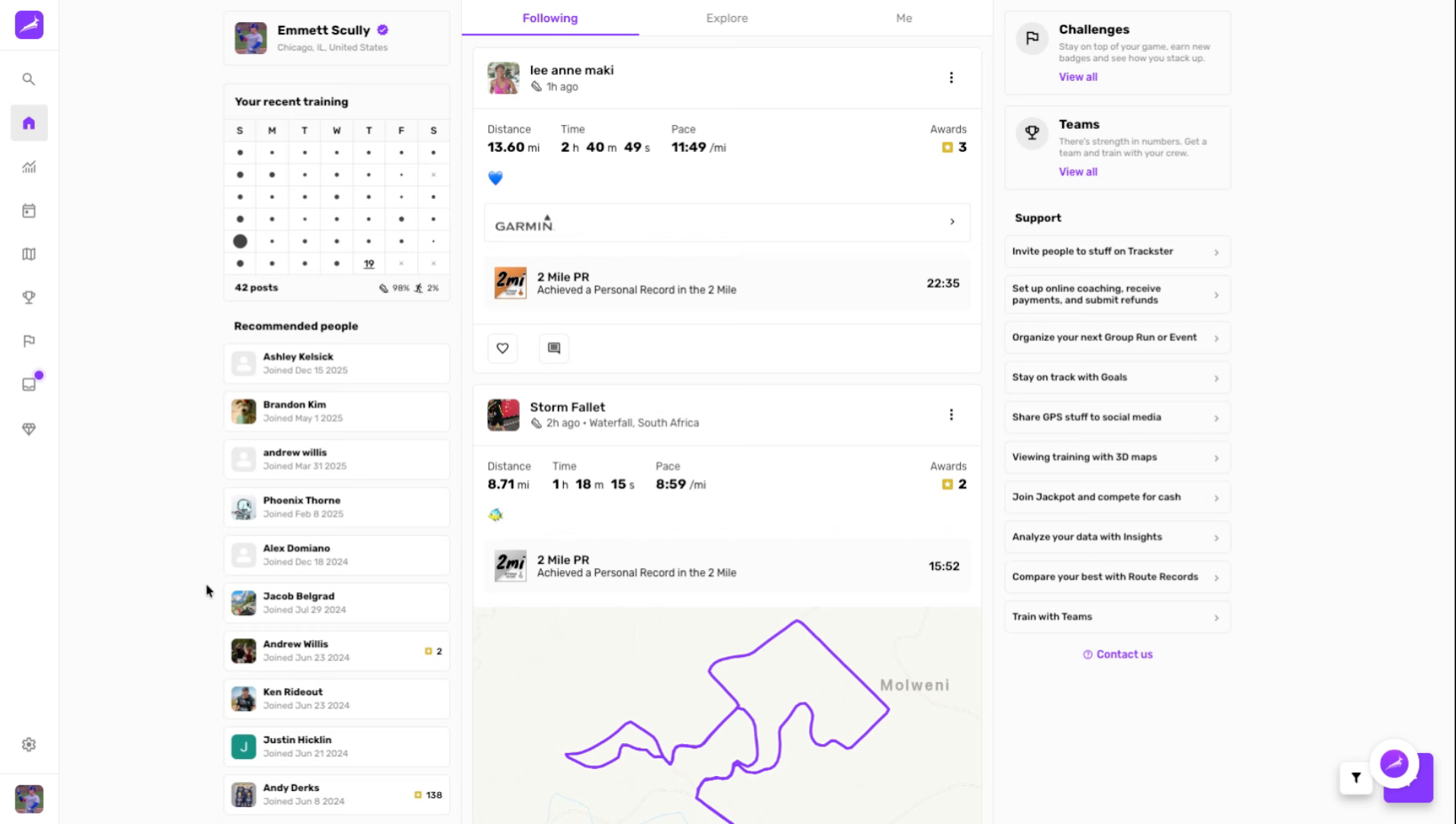
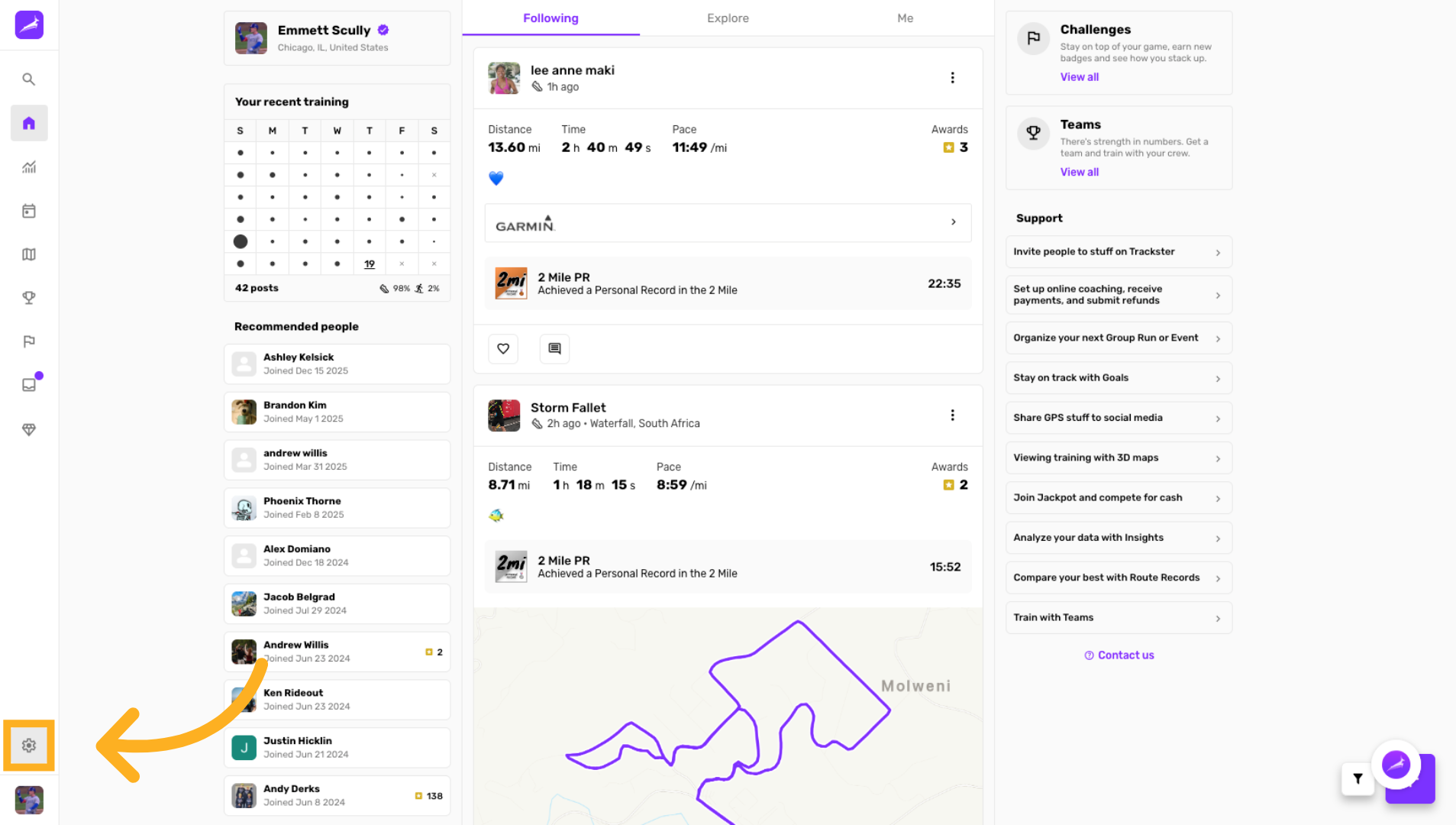
Navigate to Settings
Click the Settings option on the Home page to access configuration options.
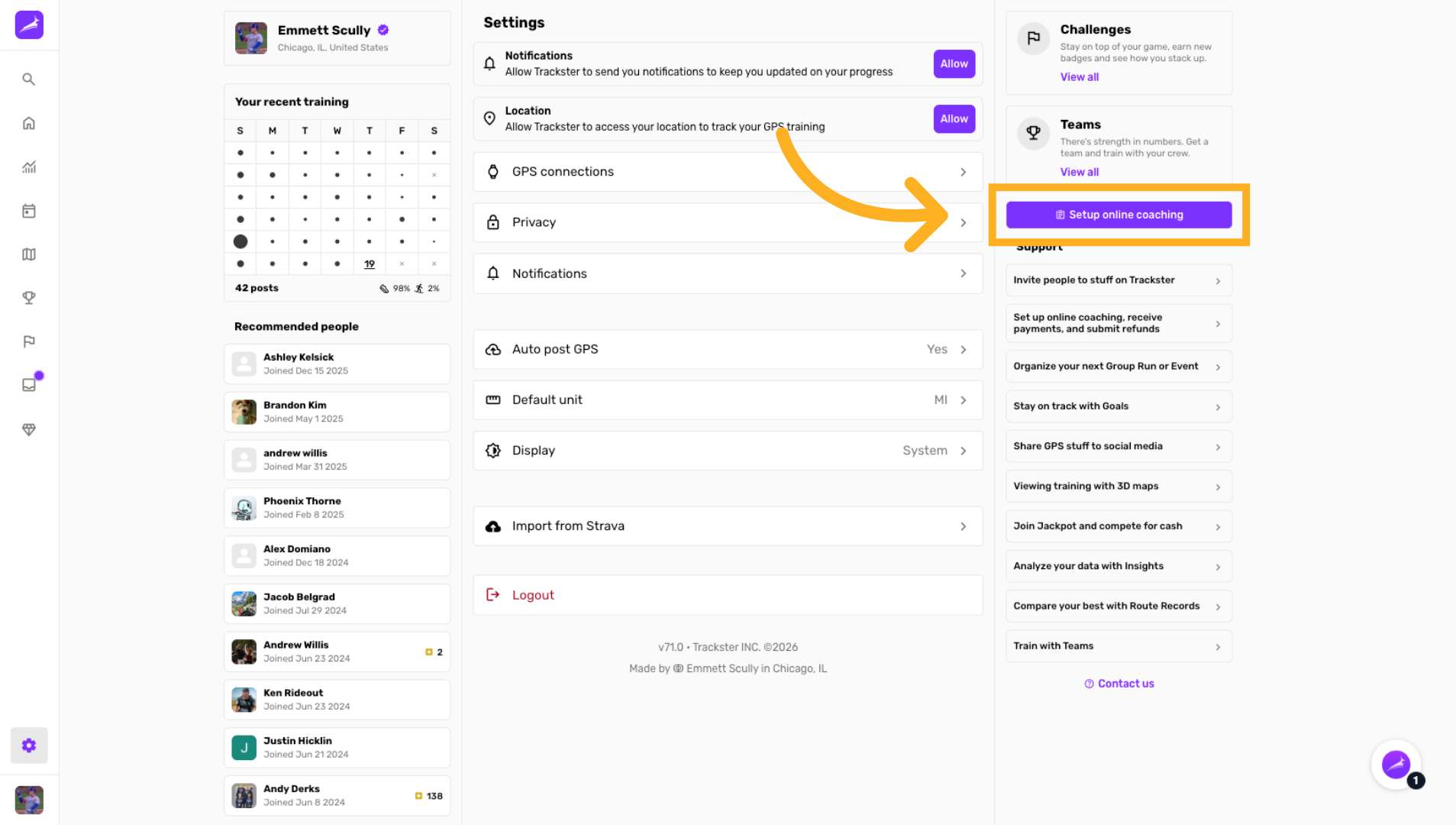
Open Online Coaching Setup
Click Setup online coaching to begin configuring your coaching services.
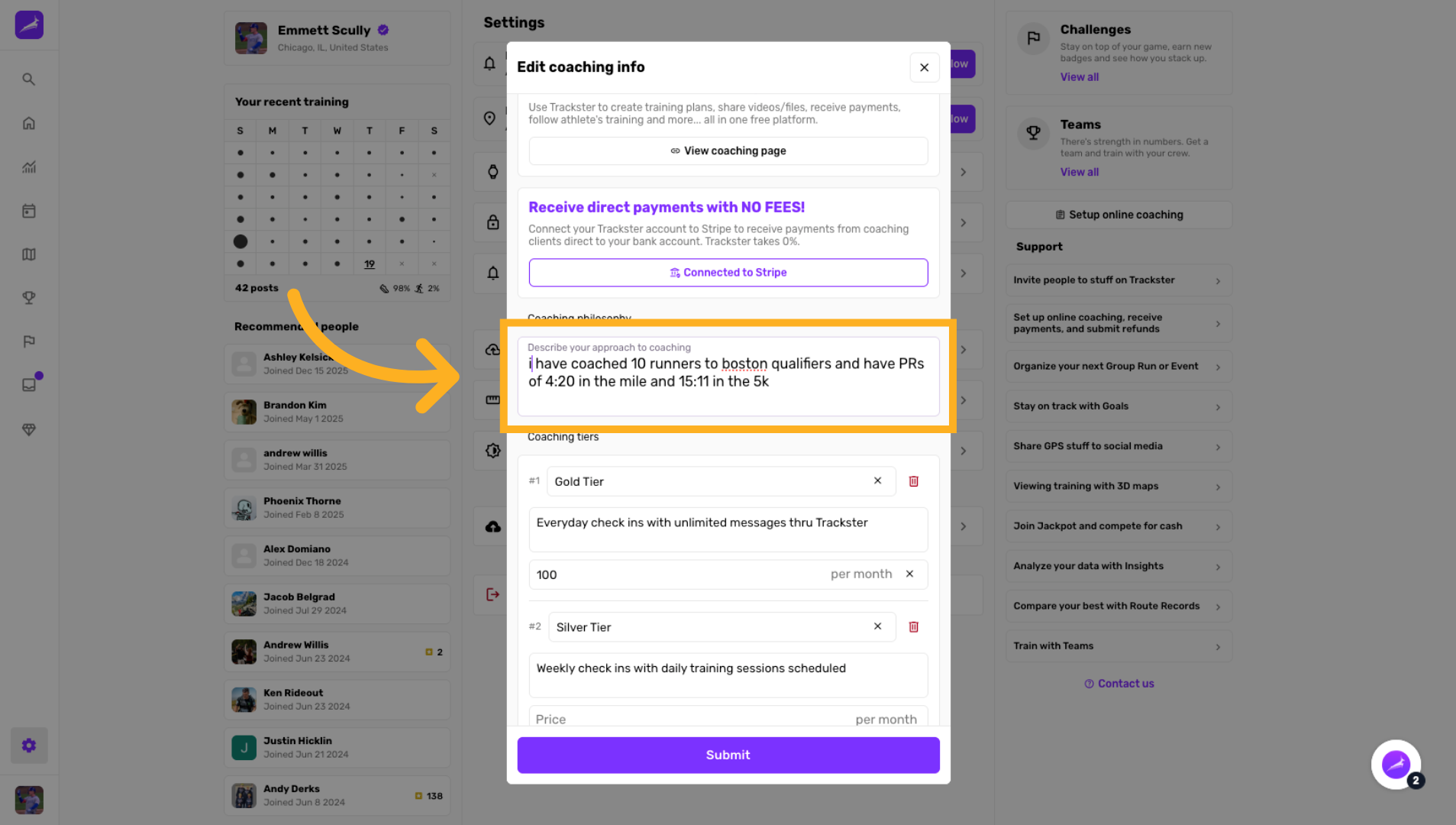
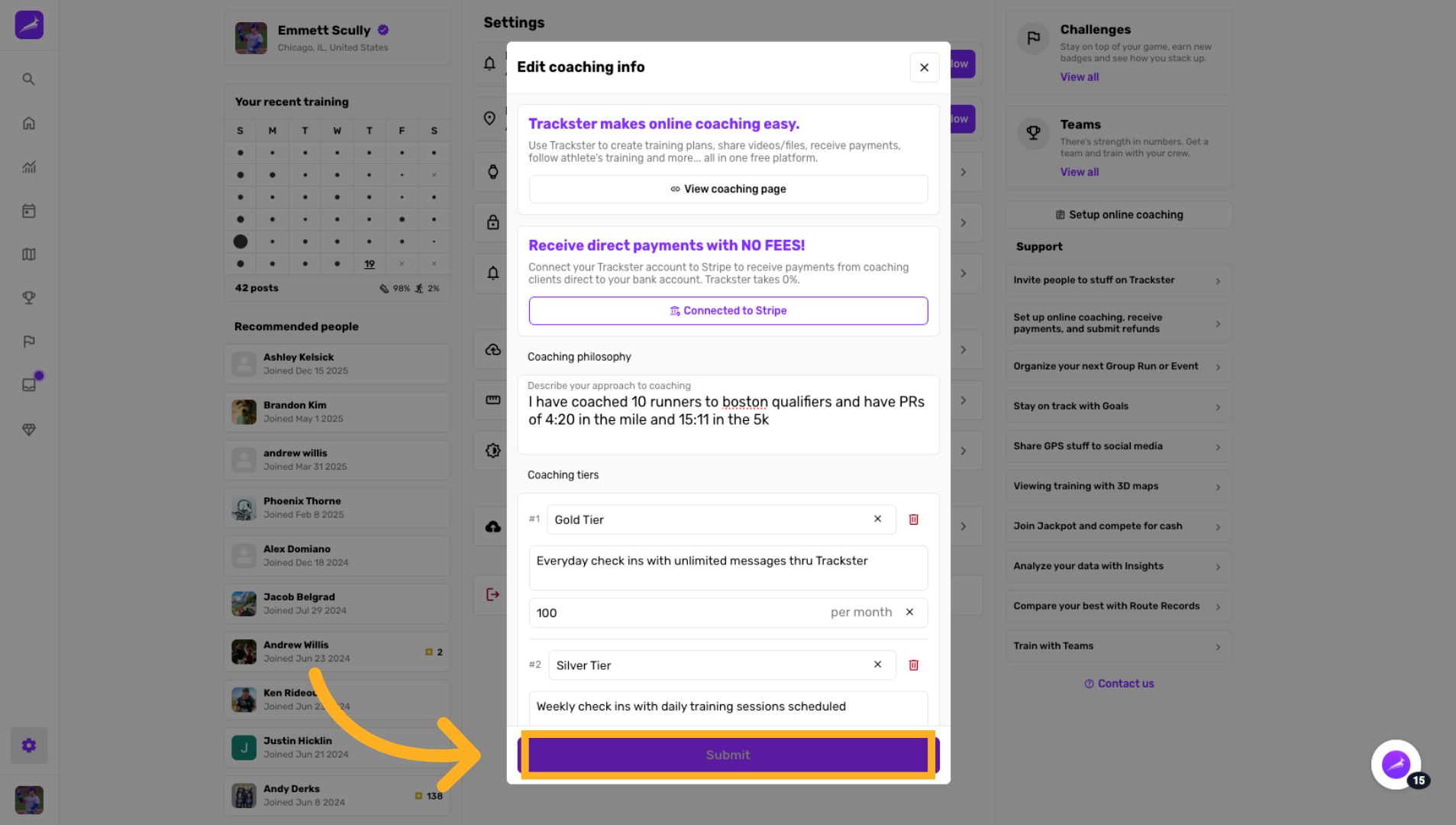
Fill out Coaching Info form
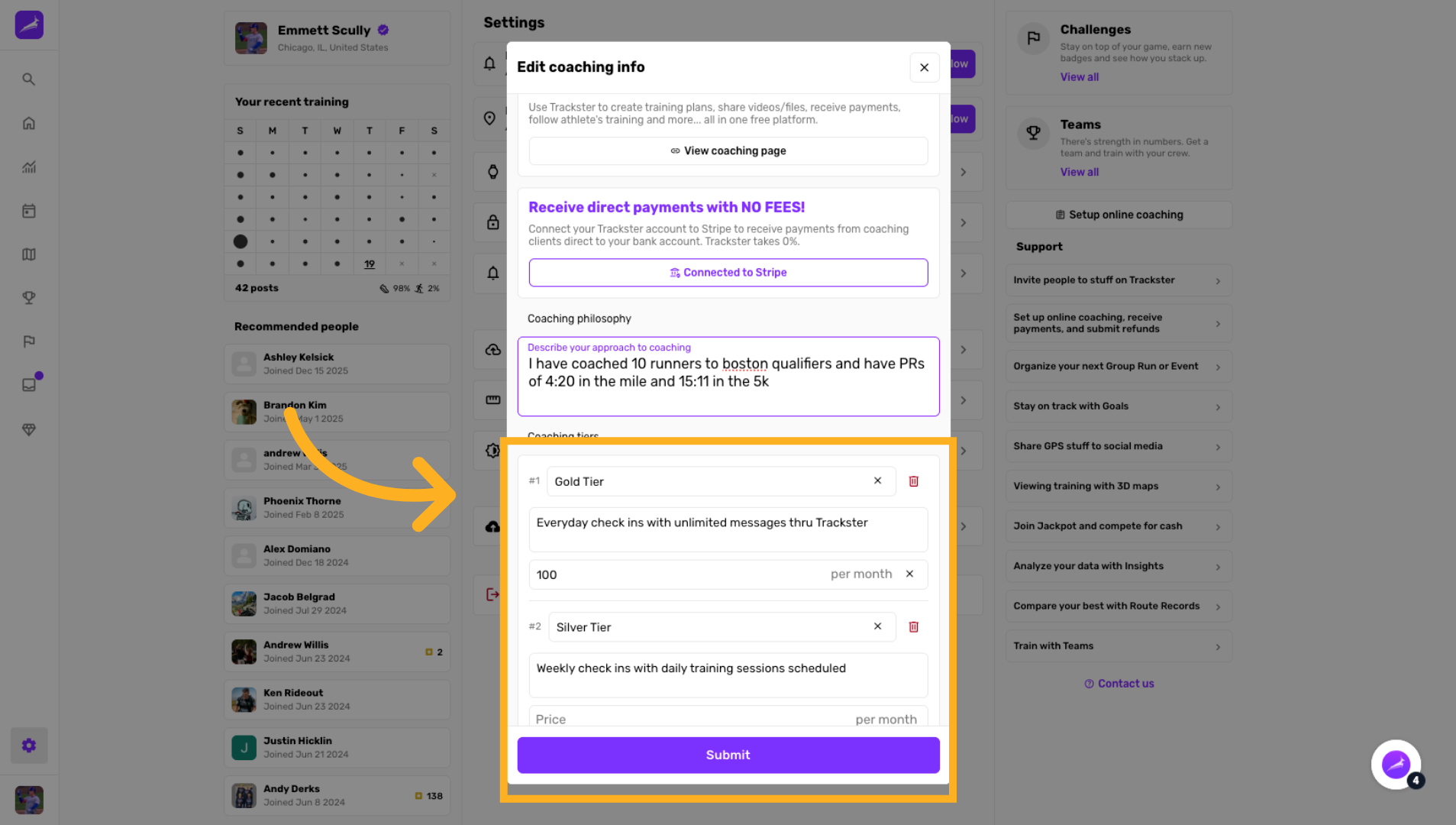
Enter your coaching info and details. Coaches can show pricing tiers, an intro video.
Access Pricing Plan Section
Click the pricing plan area where you can manage coaching packages and subscription options.
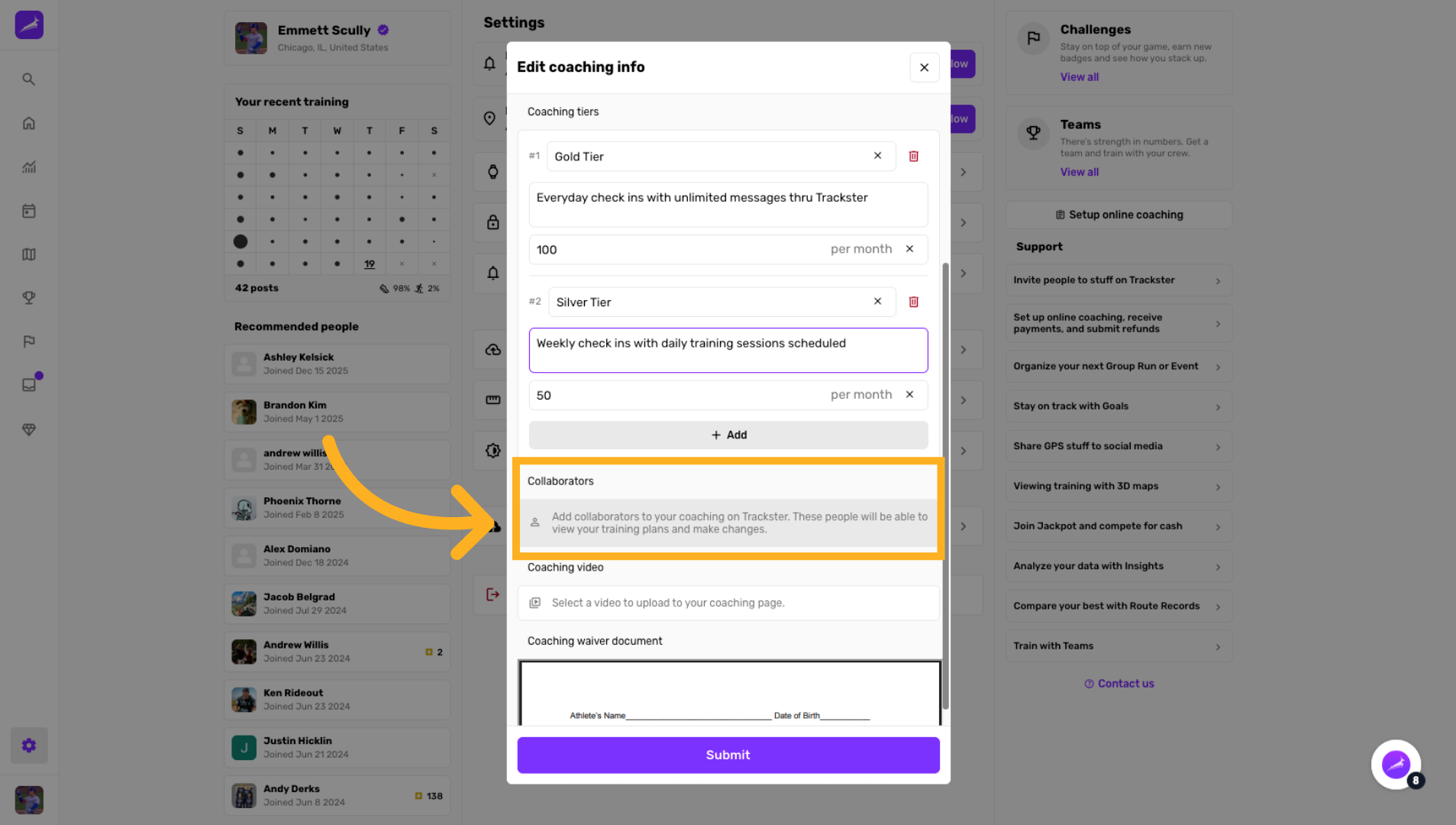
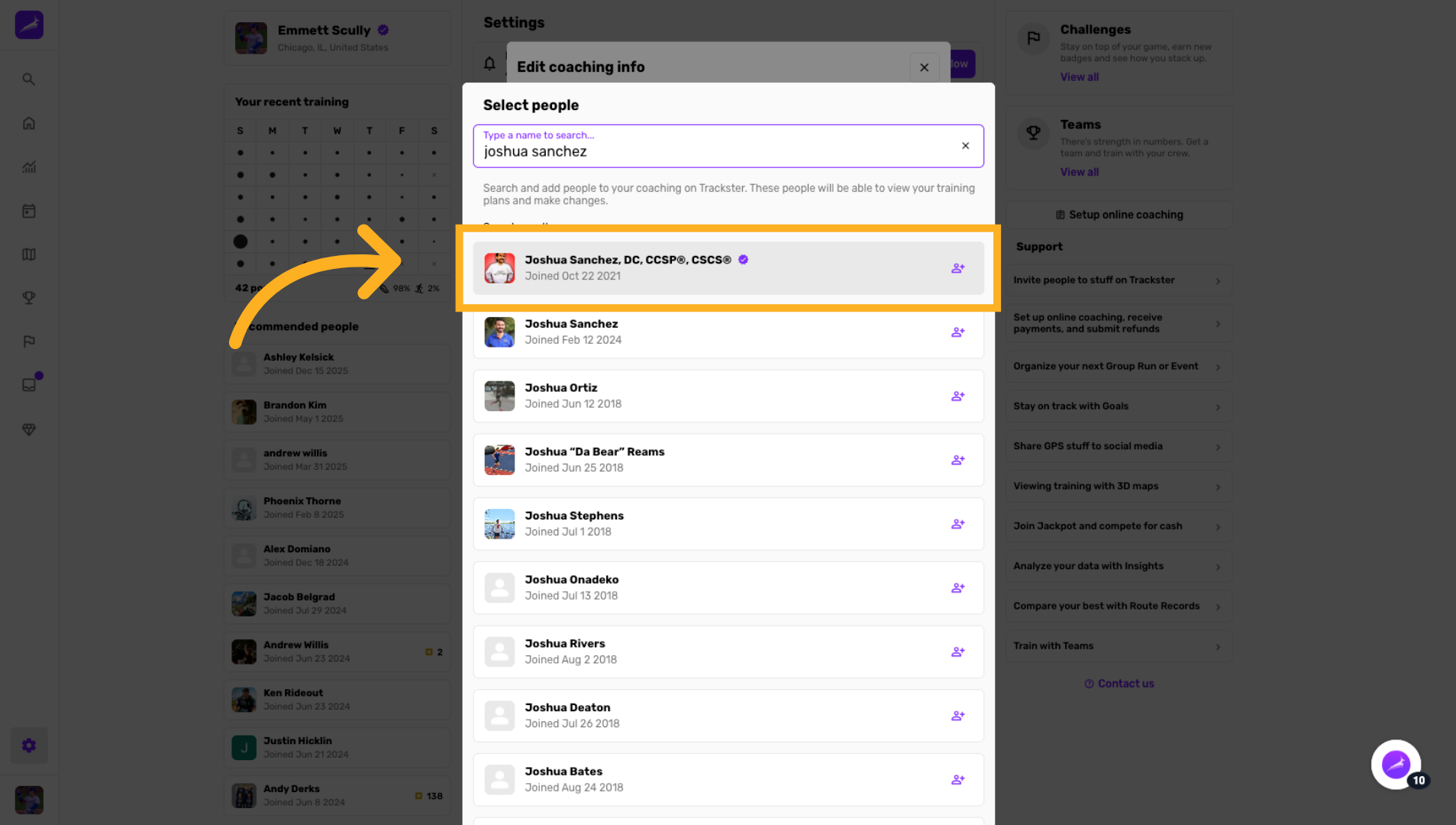
Open Collaborator Management
Click the section to add collaborators who will be able to view and edit your training plans.
Upload New Waiver Document
Click Select a waiver document to upload a new liability waiver for your coaching page.
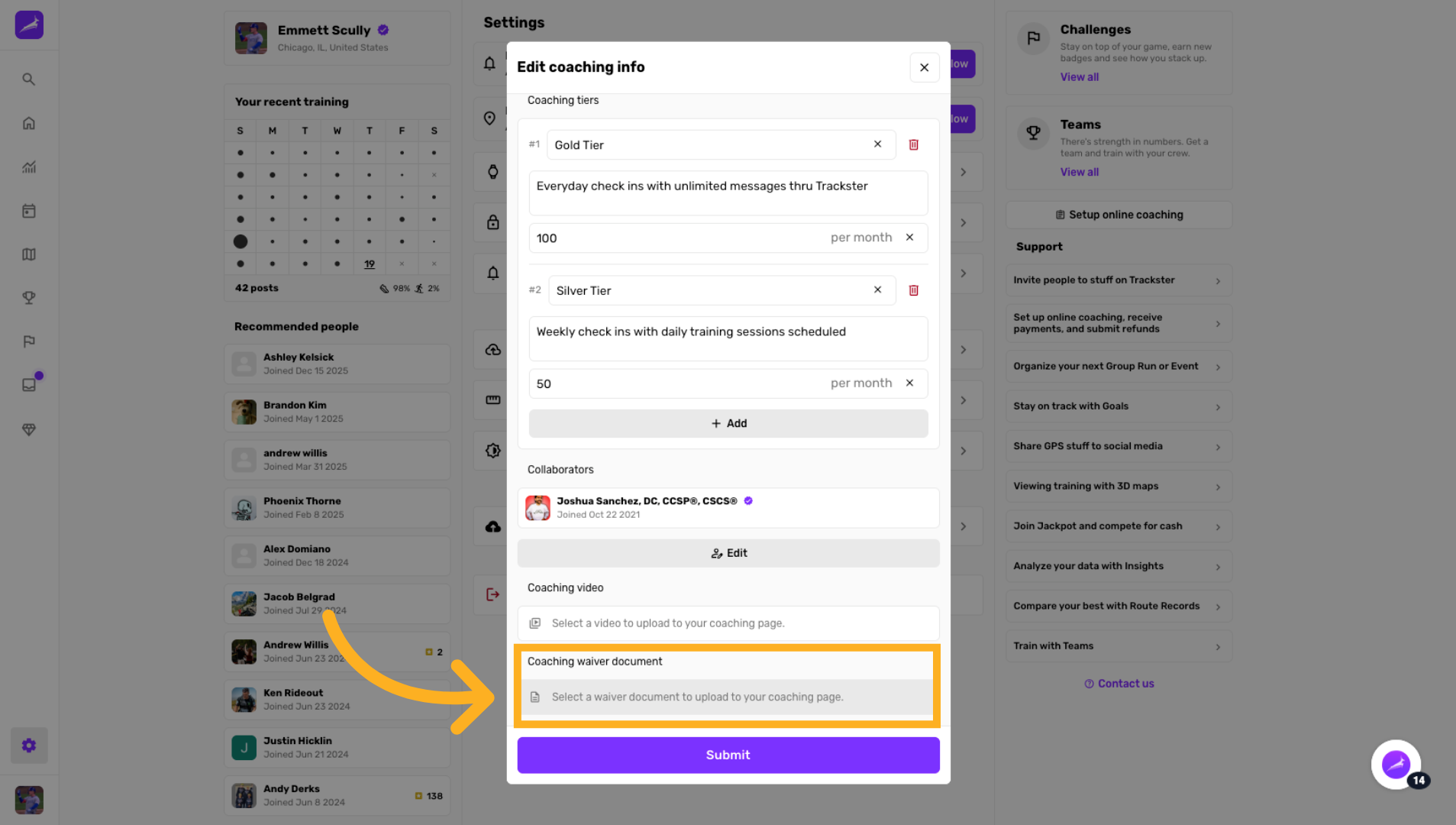
Submit Waiver Upload
Click Submit to upload and save the new waiver document to your coaching page.
You have successfully set up your online coaching services in Trackster by configuring coaching details, pricing plans, collaborators, and liability waivers. For more information, see related articles on managing coaching features and payment integration.
Coaching Web Page
Once your coaching info is saved, you will be able to share your Trackster coaching web page. This is generated for you automatically.
You should share the coaching web page on social media and other promotional avenues.
Coaches will receive email notifications when new prospective clients fill out the coaching web page and submit an inquiry.
