
This article explains how to add Workout Structure to training plan session.
Introduction
You will learn to configure Workout Structure and save them as templates for future use.
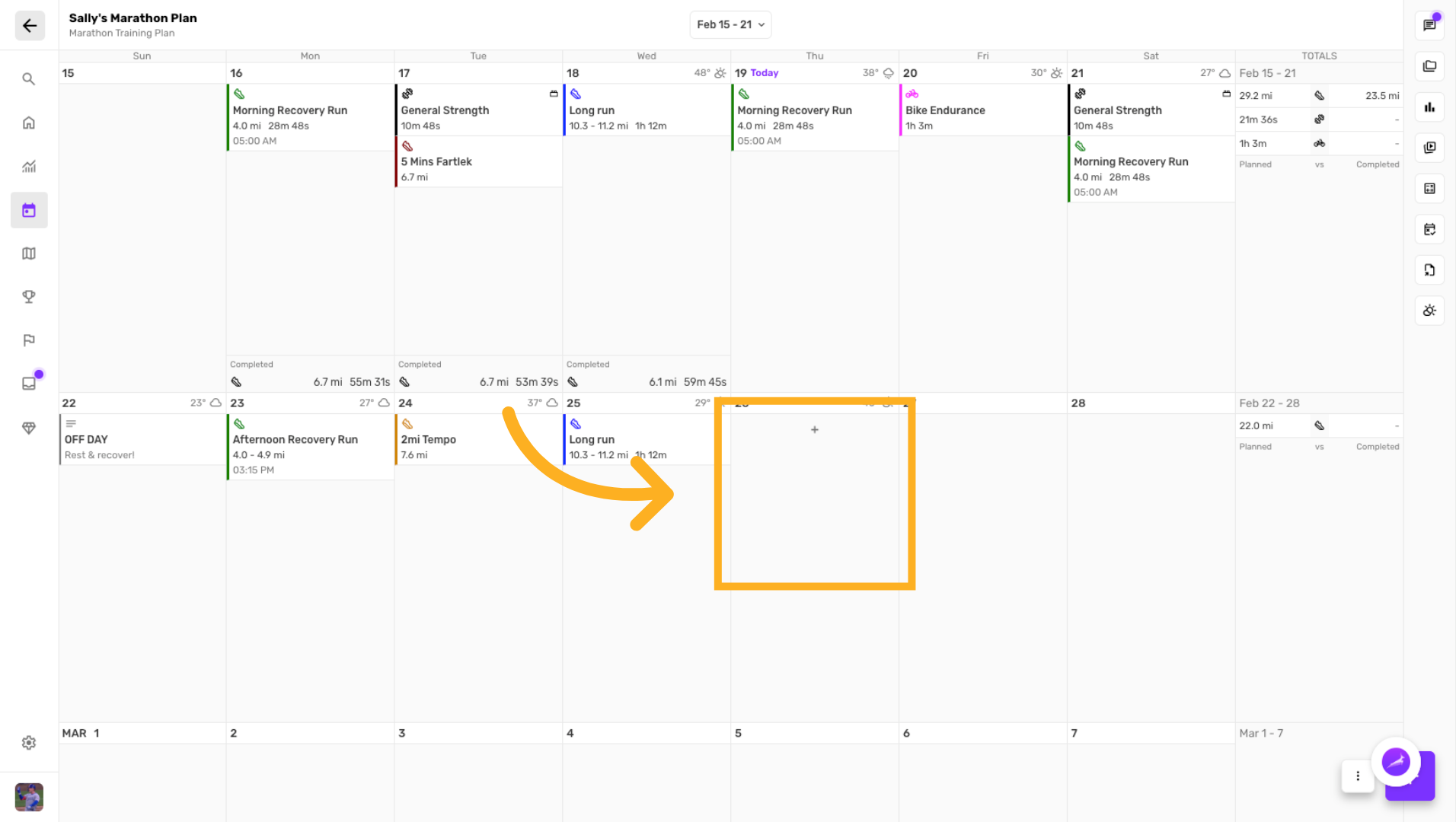
Create a new session
Click a day to create a new session. We will add the Workout Structure to this blank session.
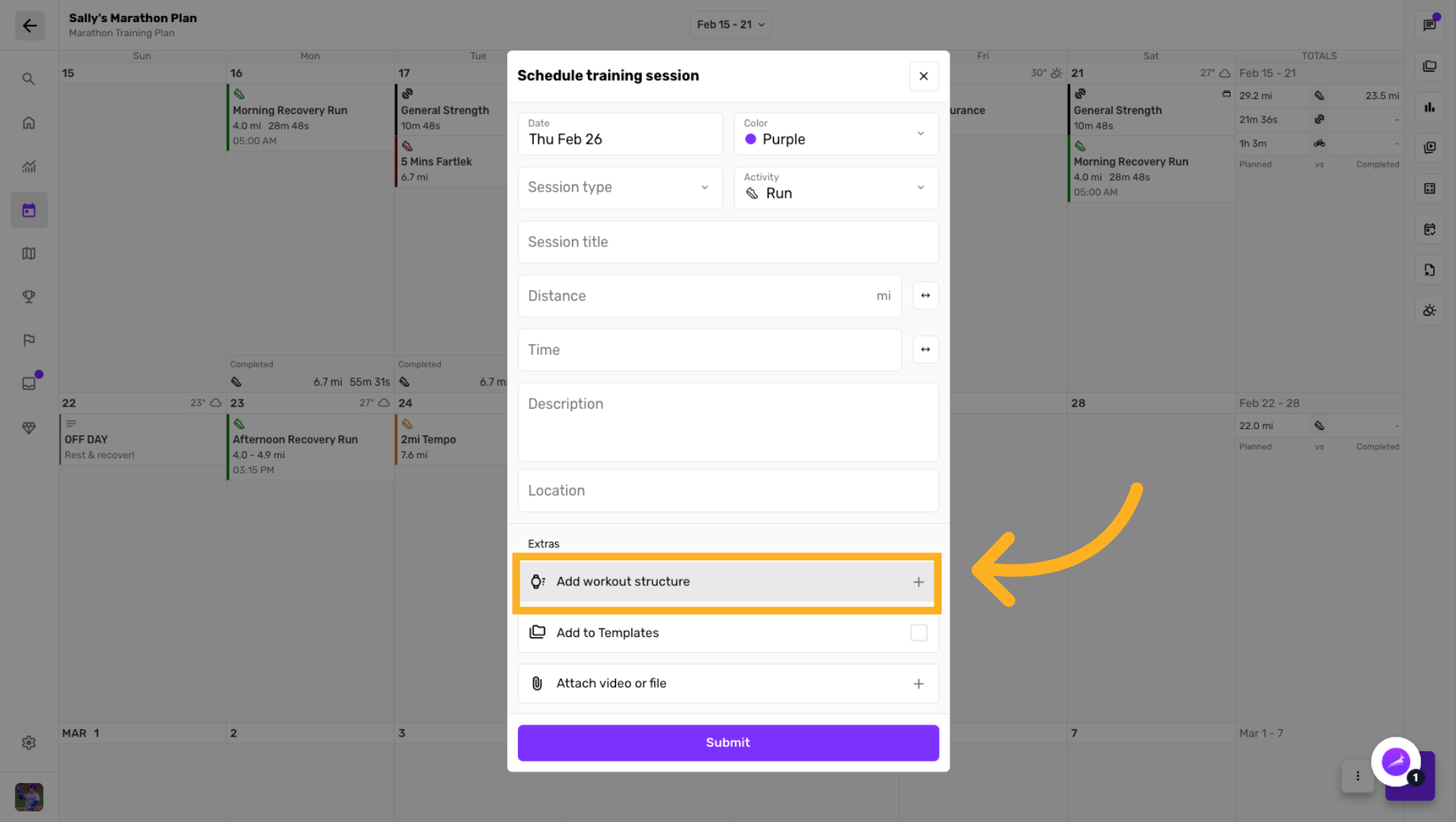
Add New Workout Structure
Click "Add workout structure" to start building the Workout Structure
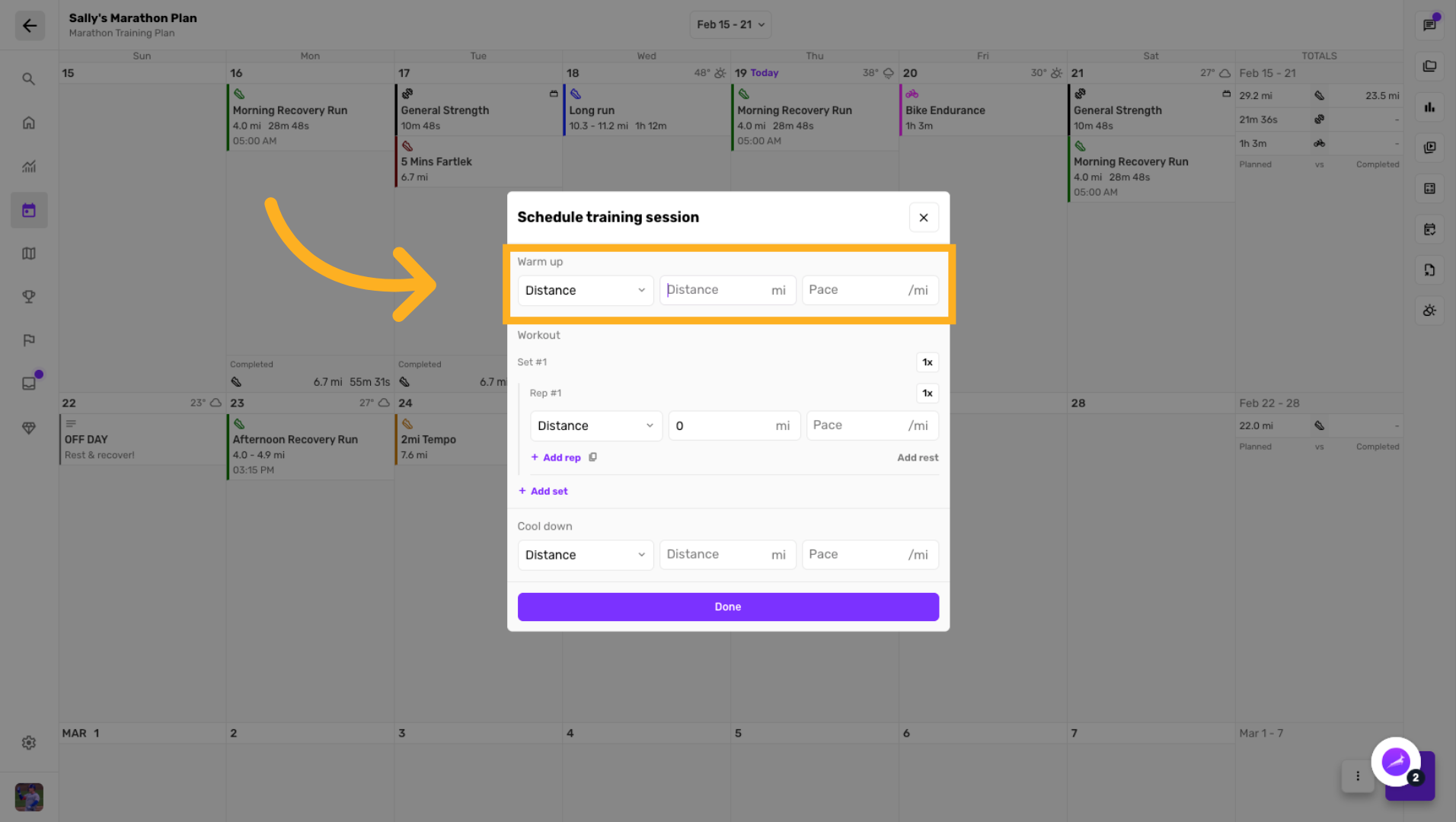
Enter a warm up
Enter time, distance and/or pace for the warm up
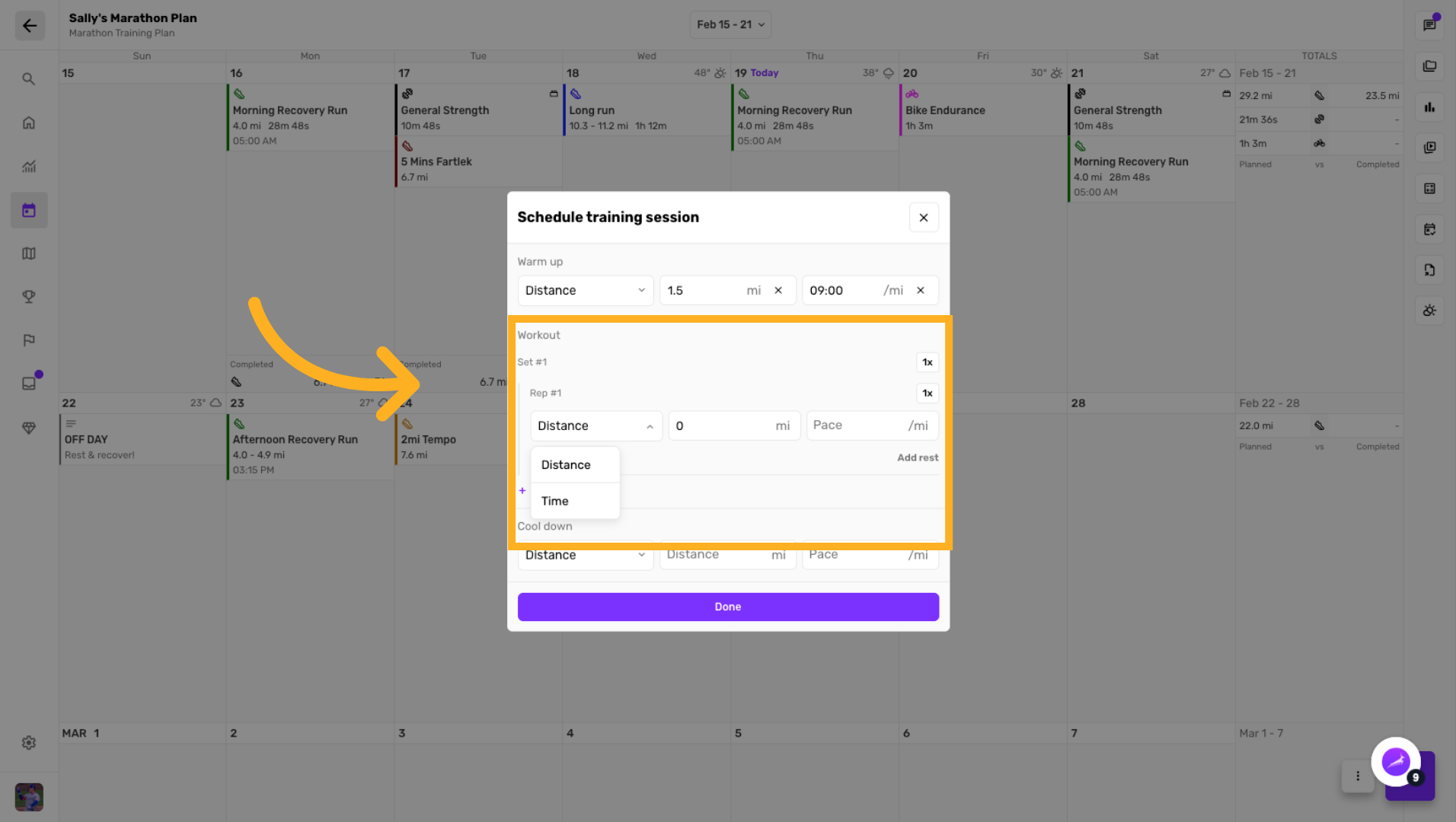
Enter set & rep details
Build out the workout with sets and reps. You can add rest and a target pace for each rep.
Increase/decrease the number of reps or sets, respectively.
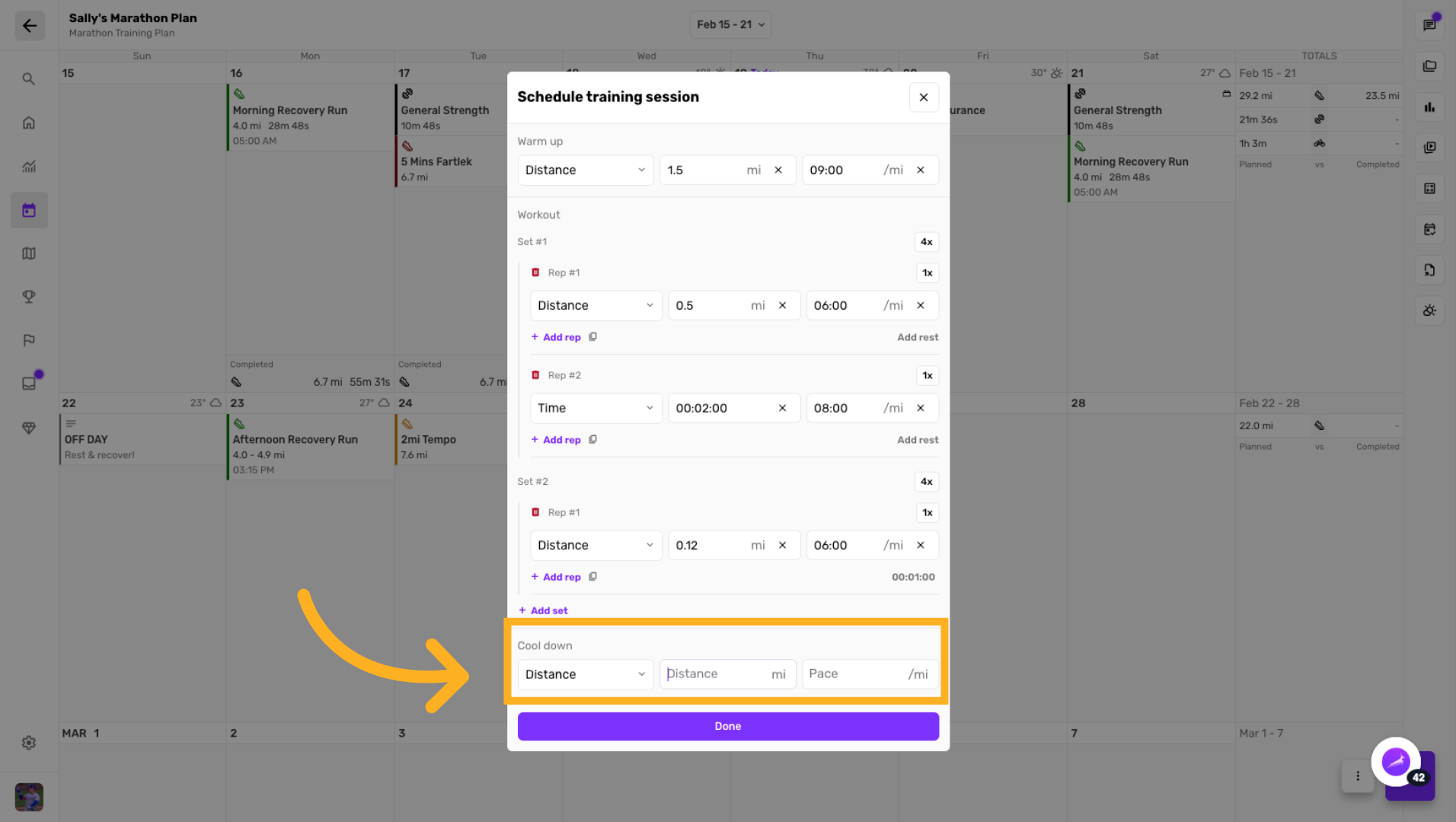
Enter cool down
Enter the cool down time or distance to finish the Workout Structure
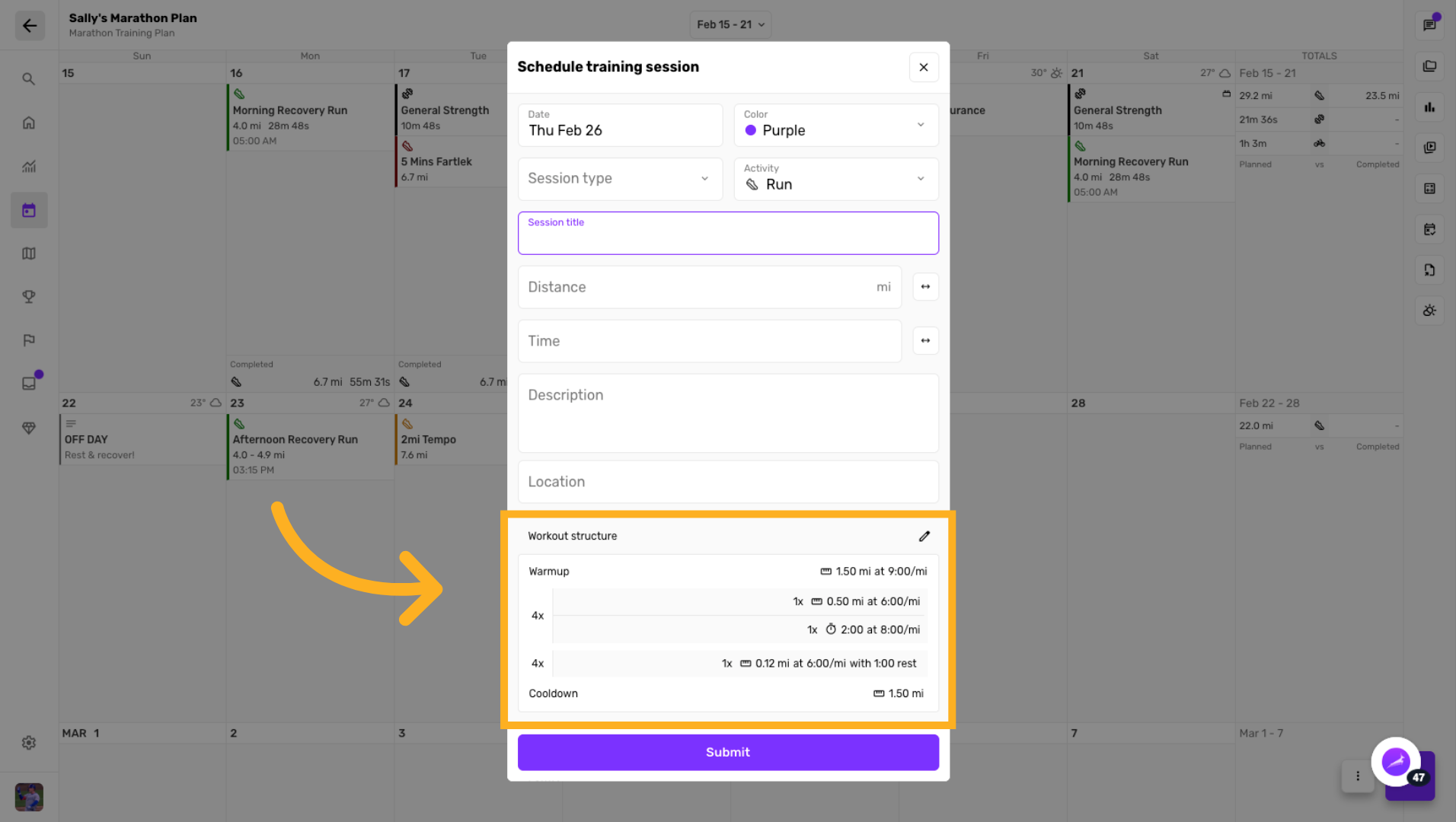
Create new session with Workout Structure
Enter the rest of the session details
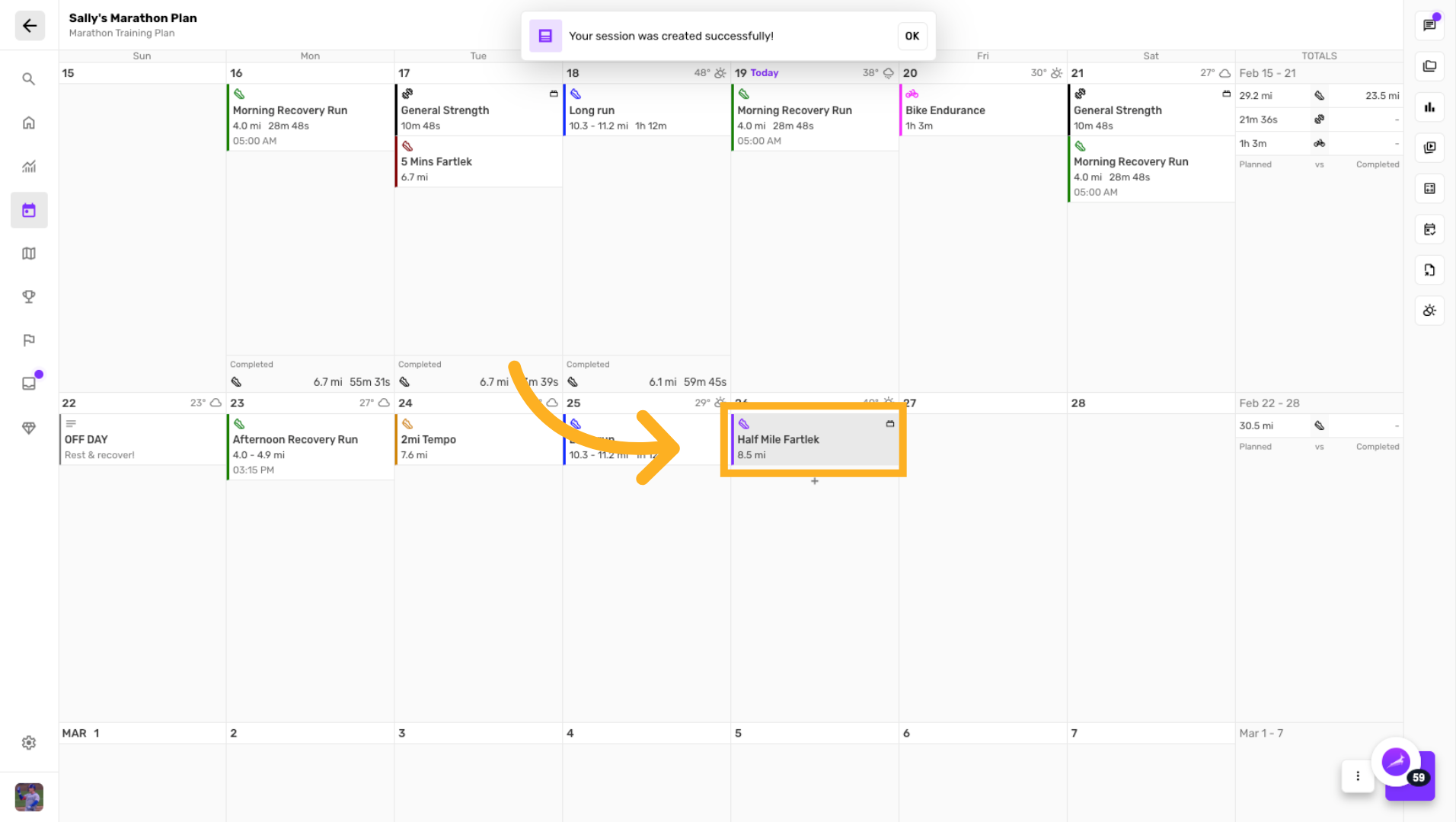
Select the new session
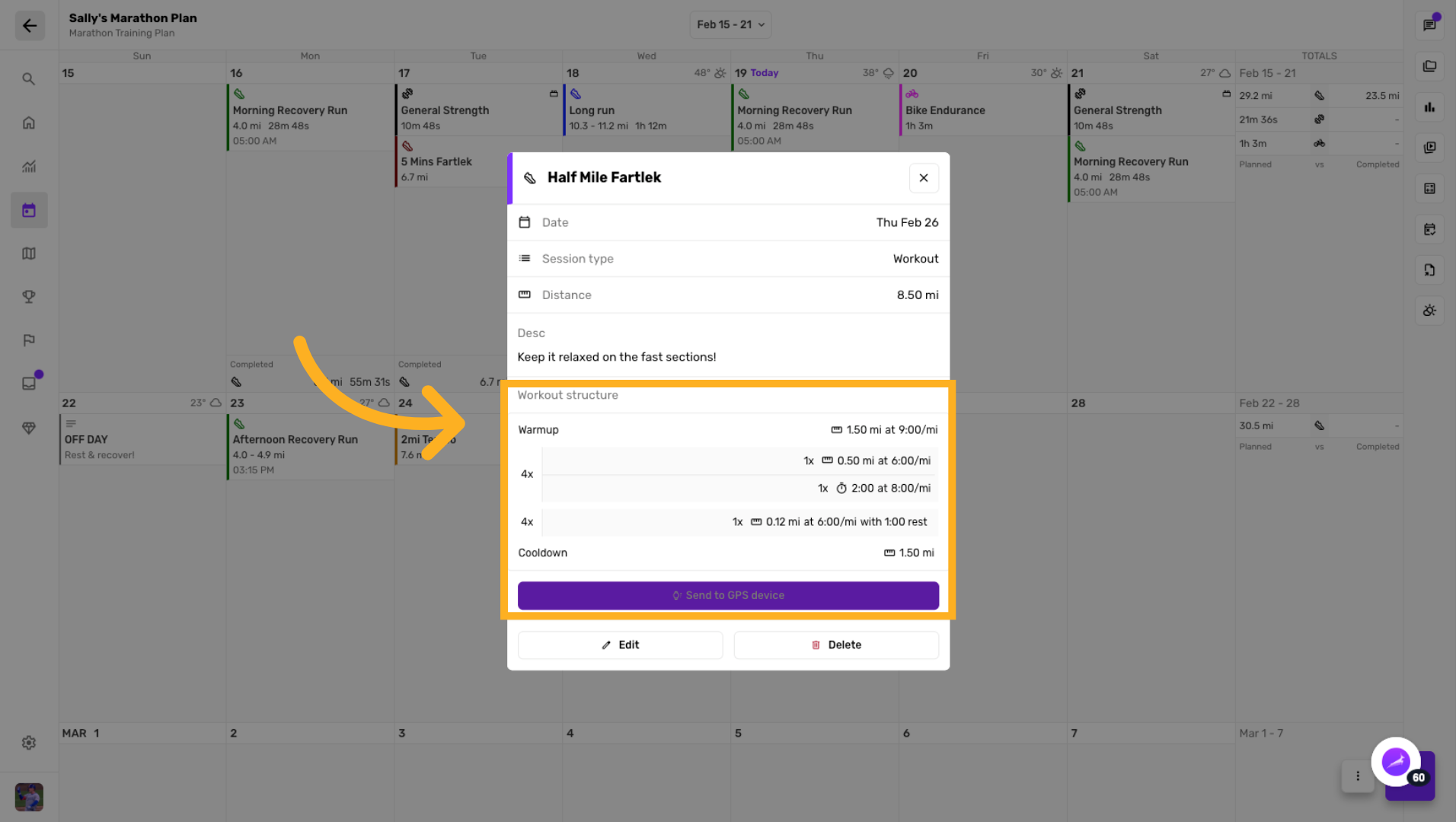
The new session with Workout Structure will show a brick icon.
Send Workout to Device
Click "Send to GPS device" to transfer the workout to an athlete's GPS device.
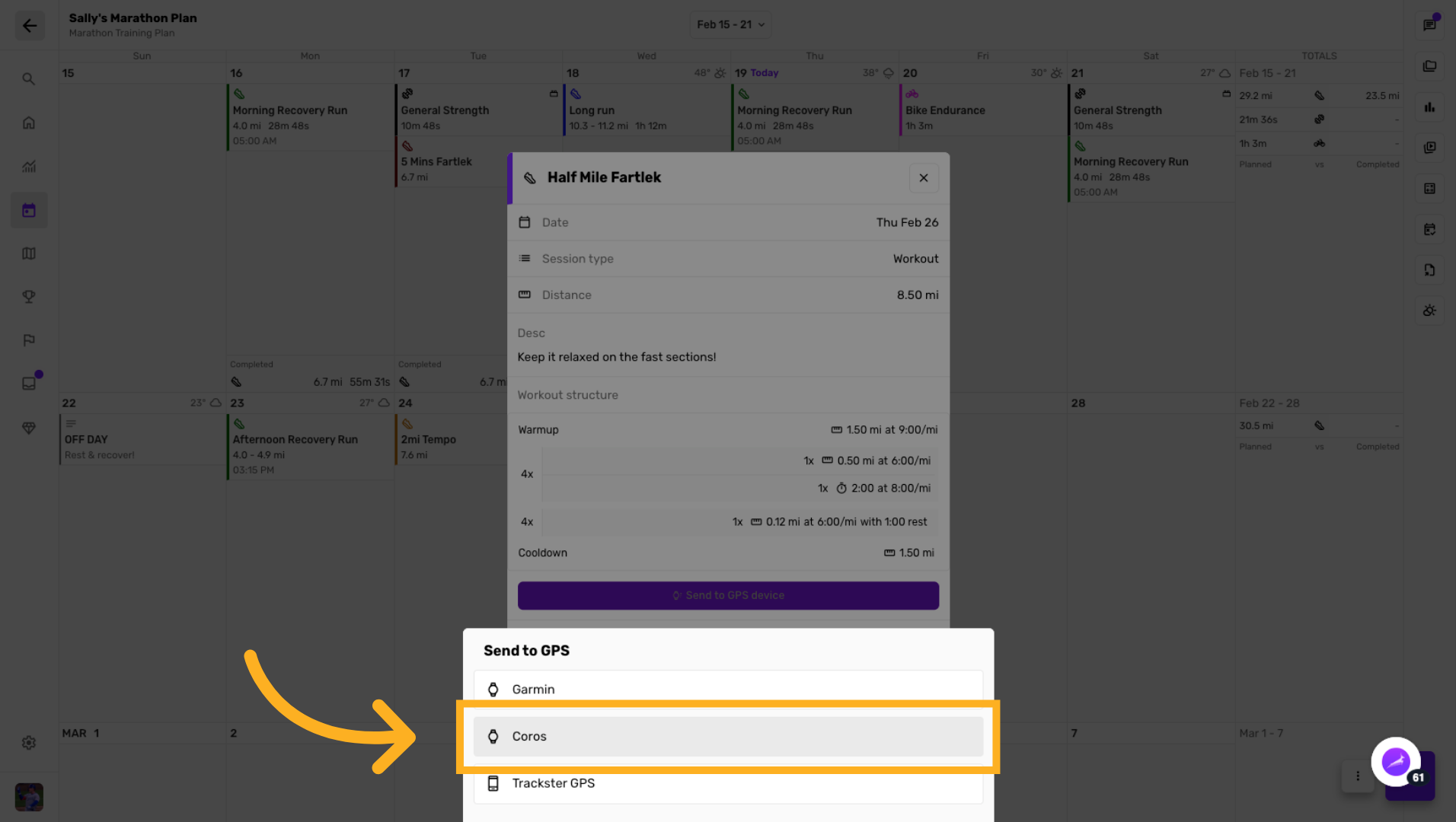
Select Device Profile
Click which device to send the Workout Structure to, supported devices: Coros, Garmin, & Apple Watch (only on iOS), and Trackster in-app GPS (Android + iOS).
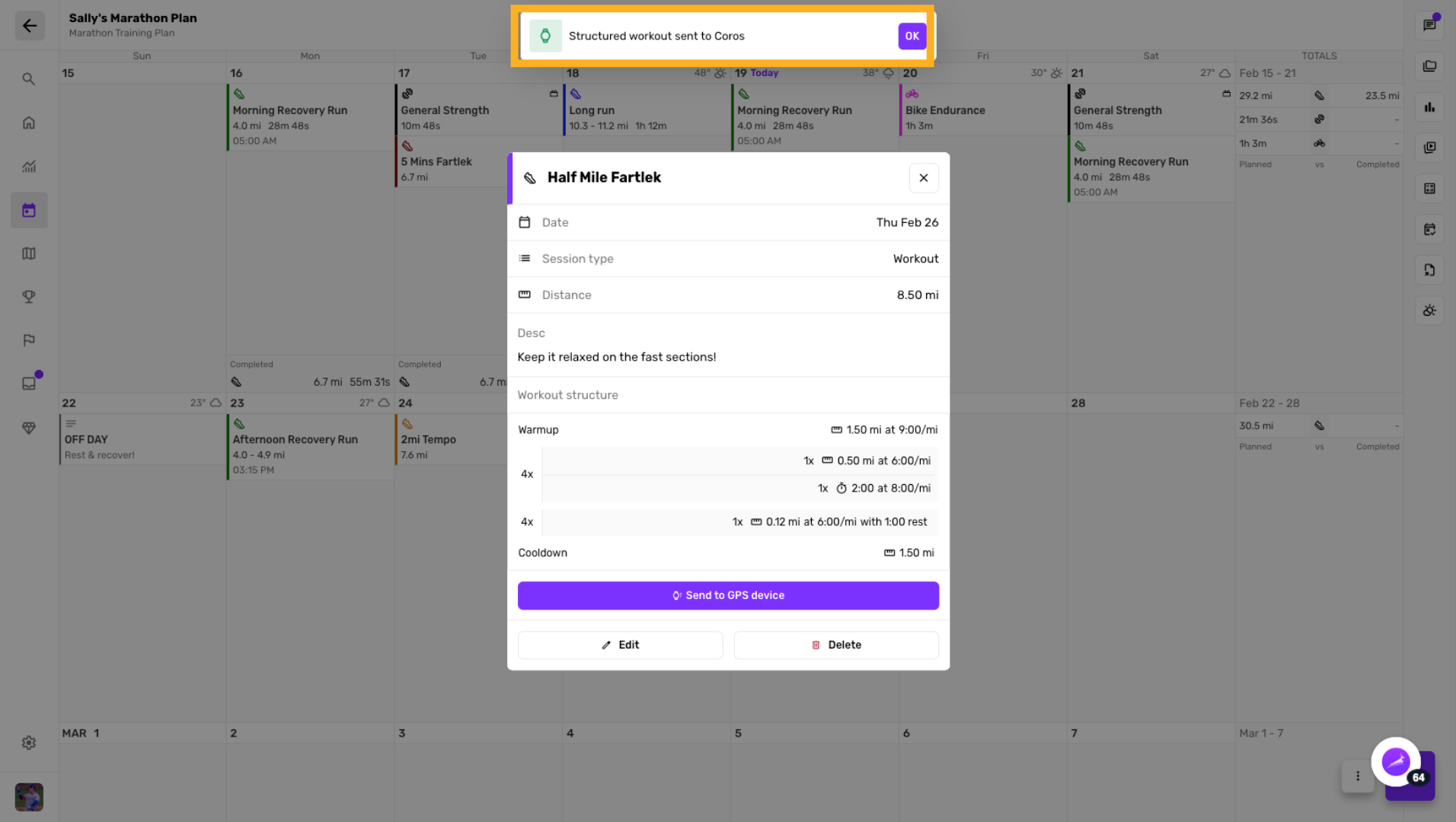
Confirm Sync Completion
Click "OK" to confirm the completion of the workout sync to your device.
This article demonstrated how to create and configure a detailed workout structure in Trackster, including setting durations, distances, repetitions, rest periods, and notes. You also learned how to save the workout as a template and sync it to a GPS device for use during training. For more information, see related articles on workout planning and device synchronization.