
This article explains how to view a 3D training replay within the Trackster platform.
View super awesome 3D replay of your GPS training
To share to social media, we recommend screen recording!
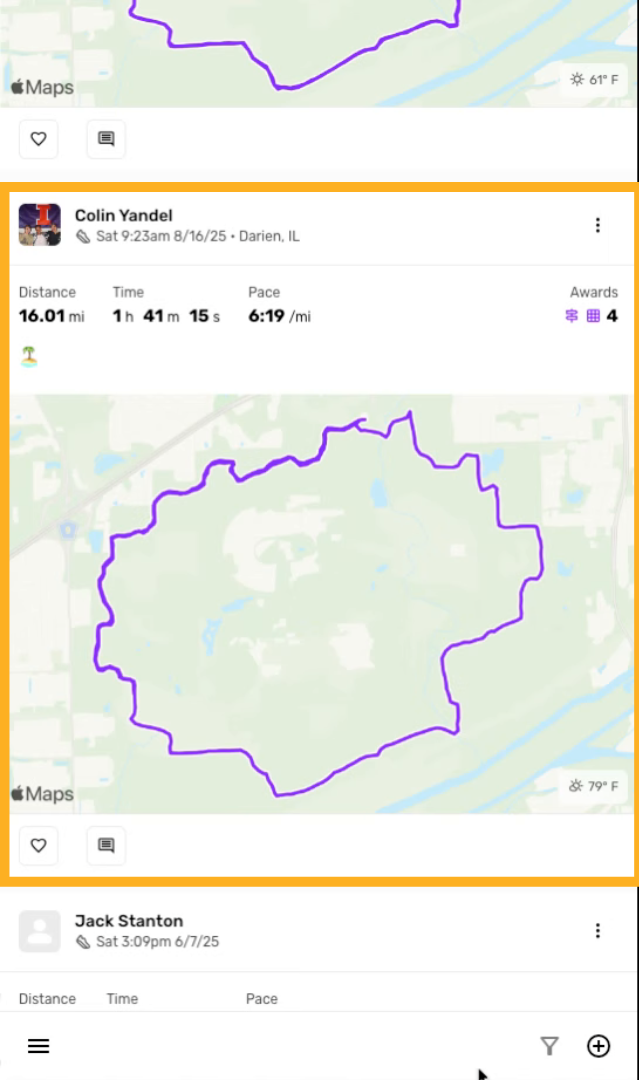
Select a training post map
Click the training post map of for the GPS you want to replay
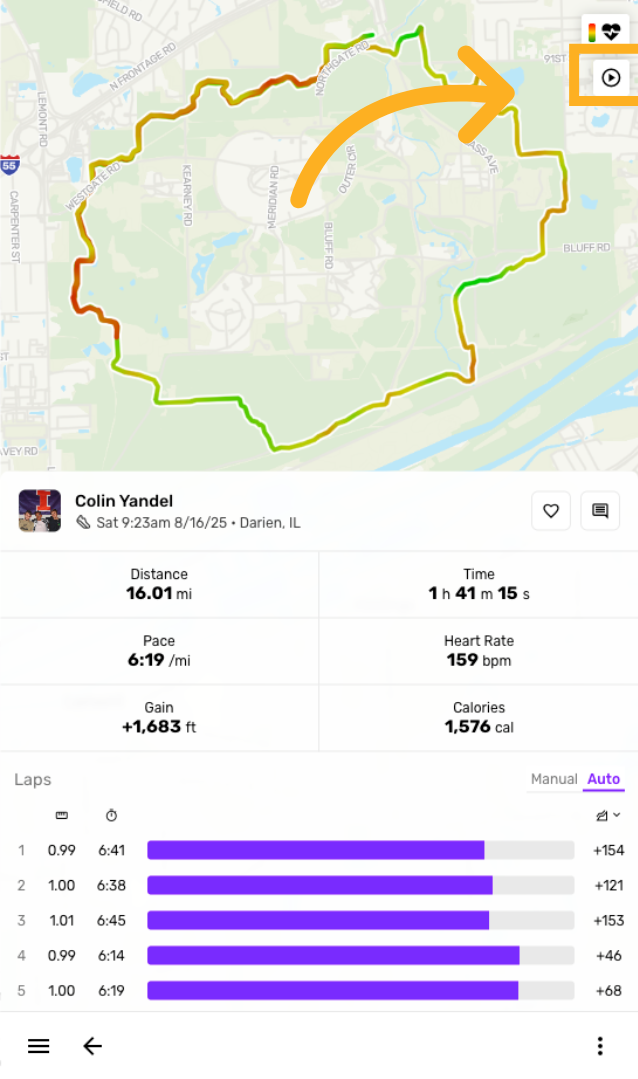
Click the play button
To view the 3D replay, click the play button once you're in the GPS view
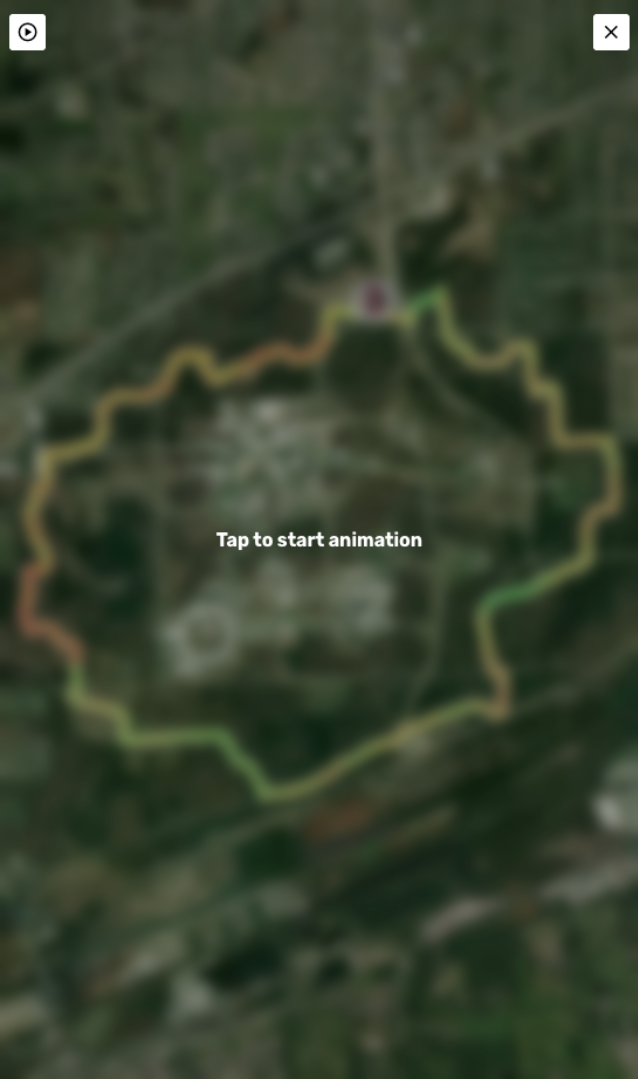
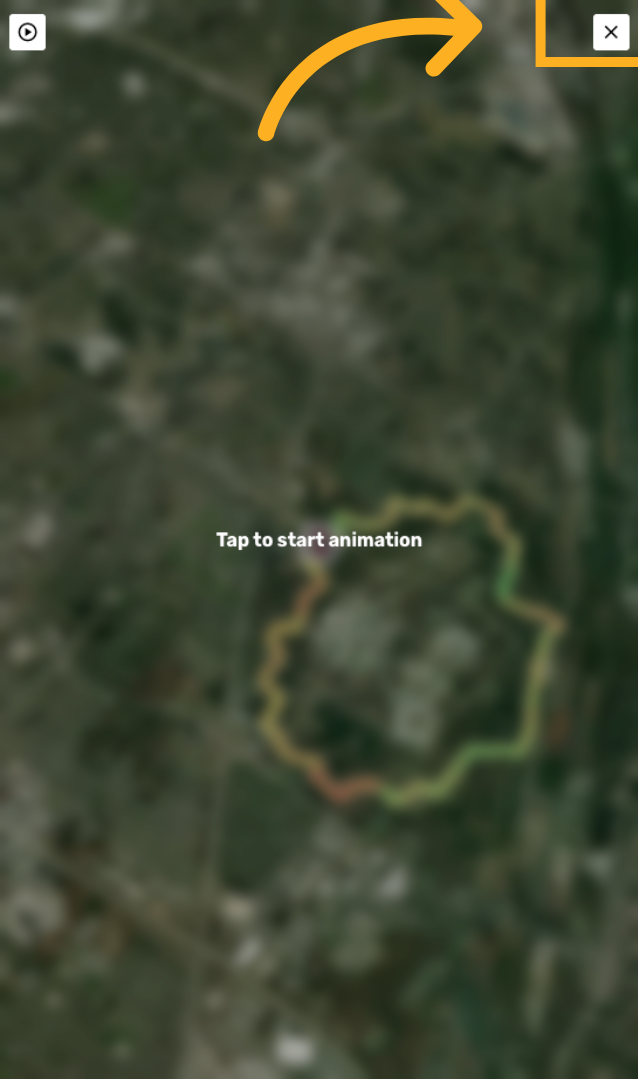
Tap to start 3D replay
Click "Tap to start animation" to begin the 3D training replay.
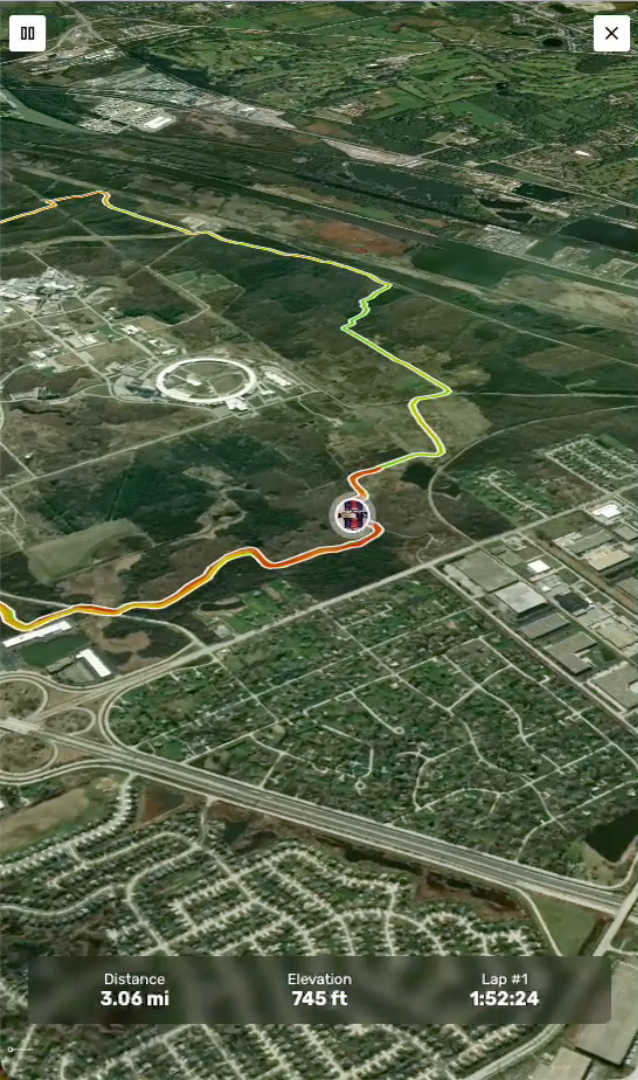
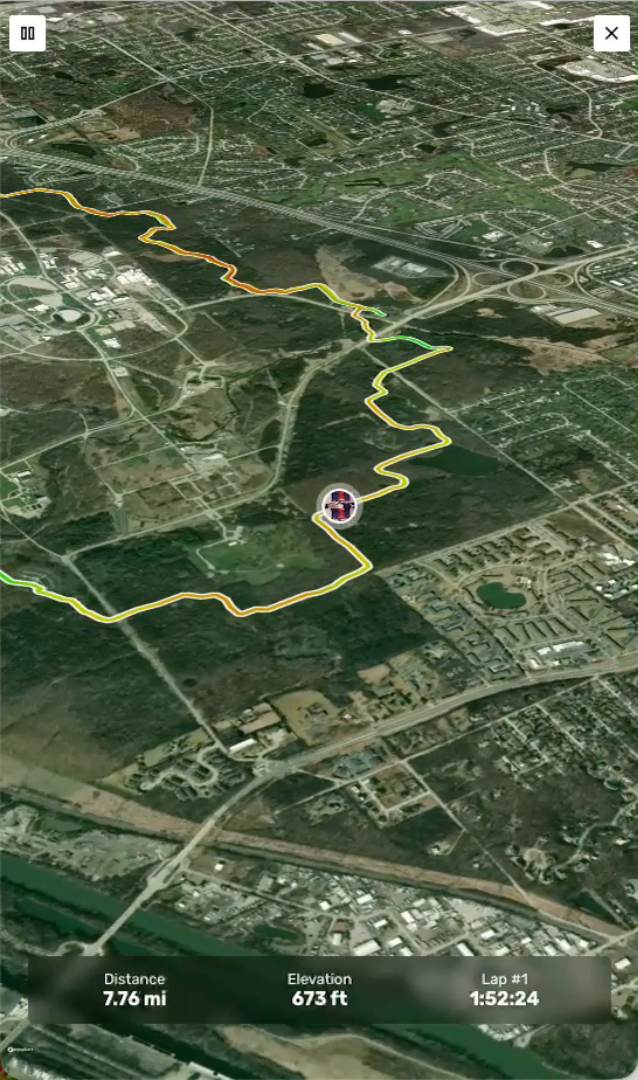
Feast your eyes!
Watch your wonderful training effort back with terrain and buildings factored in. You can toggle the gradient line shown on the previous GPS page.
Exit or Close Replay
Click the link to exit or close the 3D training replay and return to the previous screen.
You have successfully viewed a 3D training replay in Trackster by navigating through the GPS training post and starting the animation. For more information, refer to related articles on training analysis and GPS data visualization.