
This article explains how to share a training post to social media using Trackster.
Go to the training post you want to share
Training posts with GPS data work the best for share editor, but manually created training posts work, too!
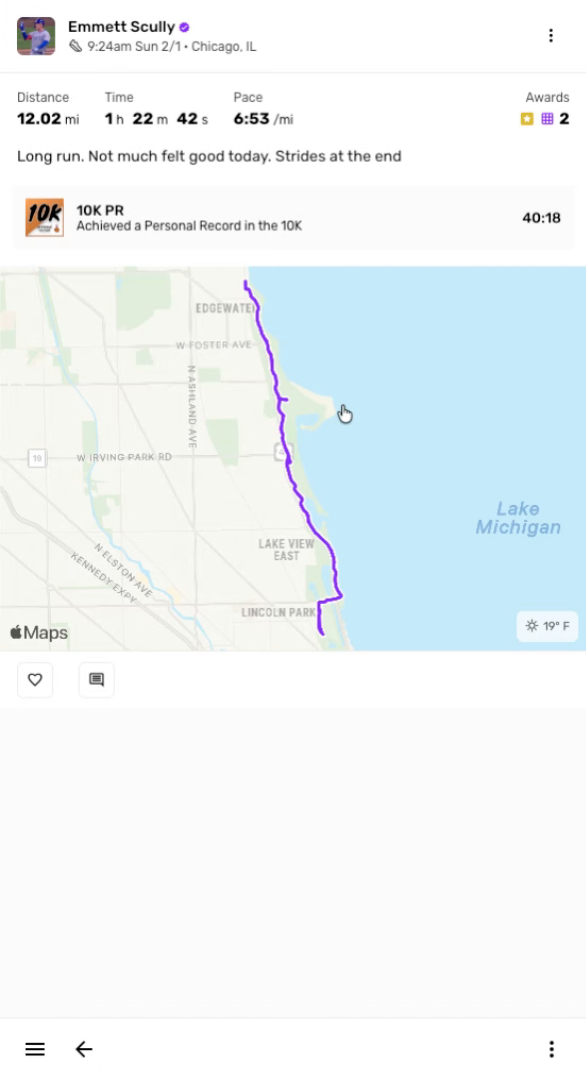
Click Extras button
Click the extra button to open the training post you want to share.
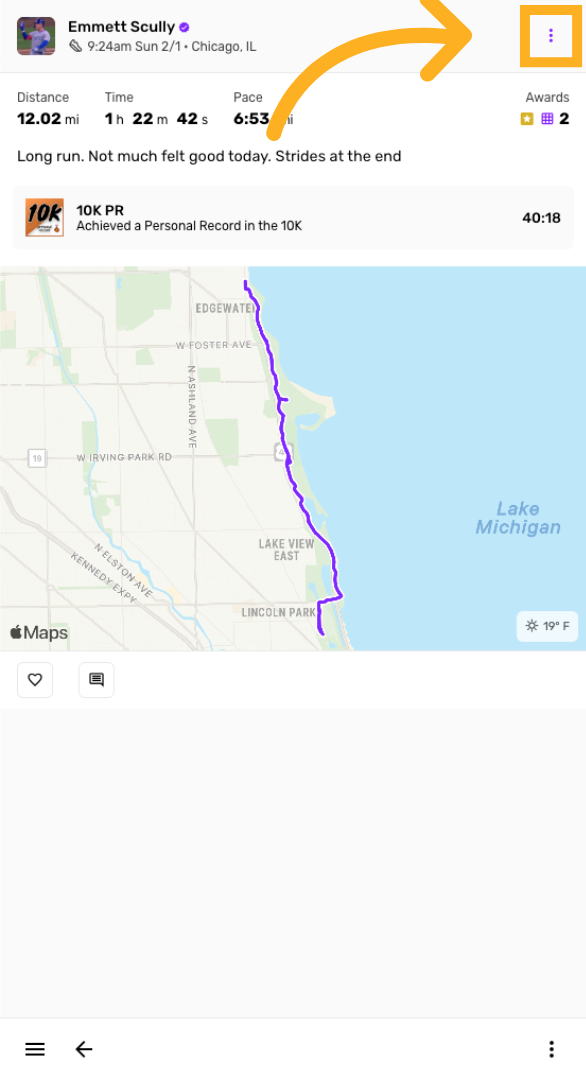
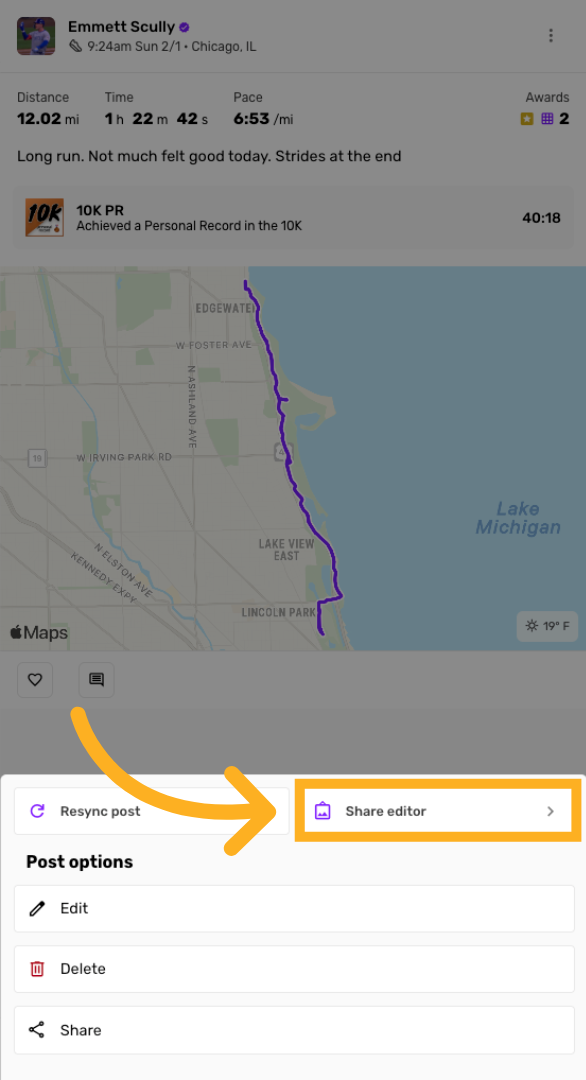
Open Share Editor
Click "Share editor" to go to edit & customize
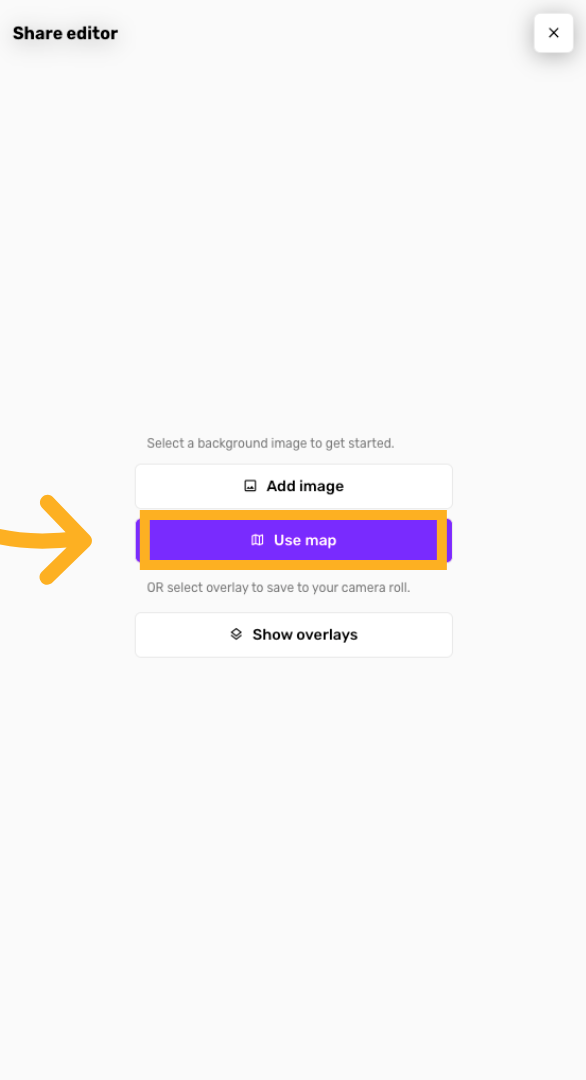
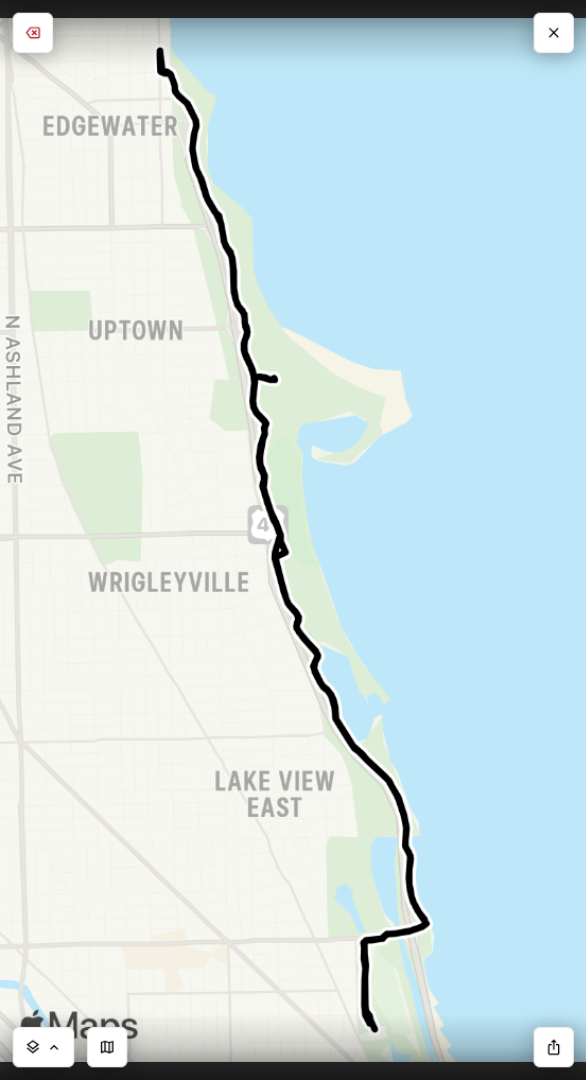
Enable Map Usage
Click "Use map" to use the map as your background image.
Adjust Map View
Choose custom map style & display options
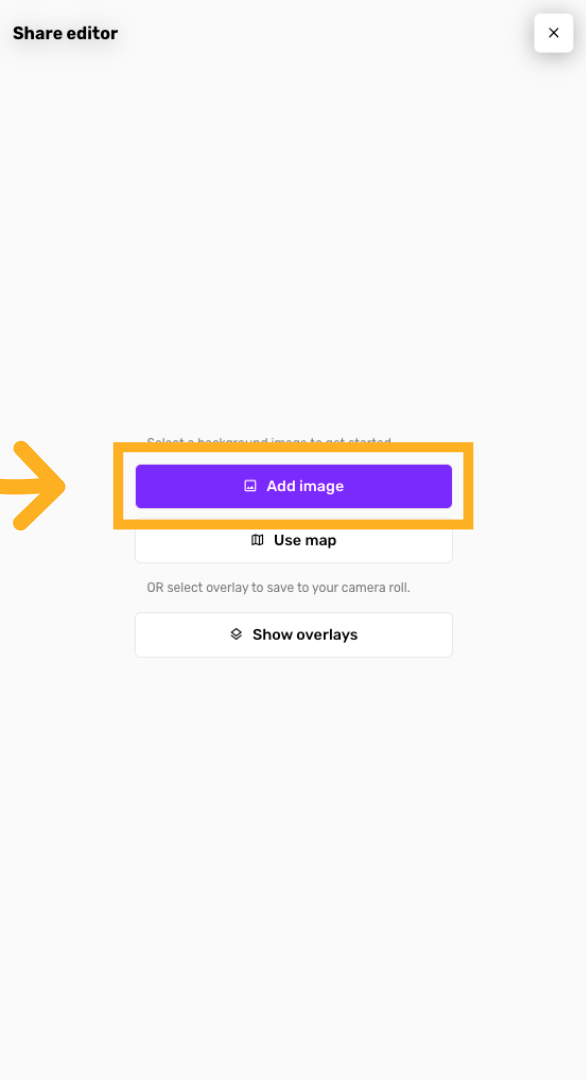
OR Use Image as background
Click "Add image" to upload a photo to use as the background.
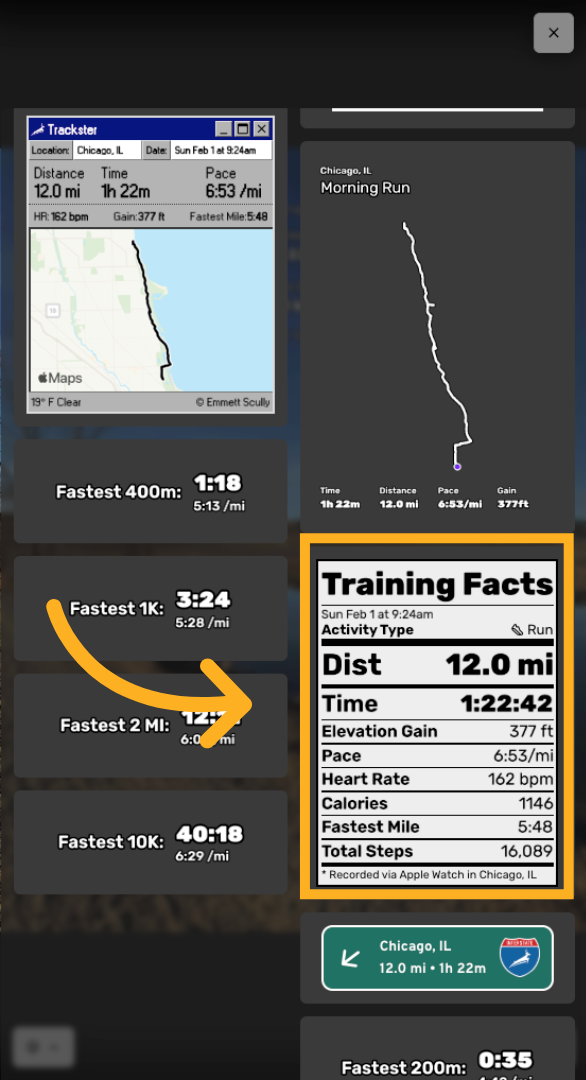
Choose overlays
Select from the overlay stickers to use on your image
Open Additional Options
Select from the most fun overlays and make a masterpiece
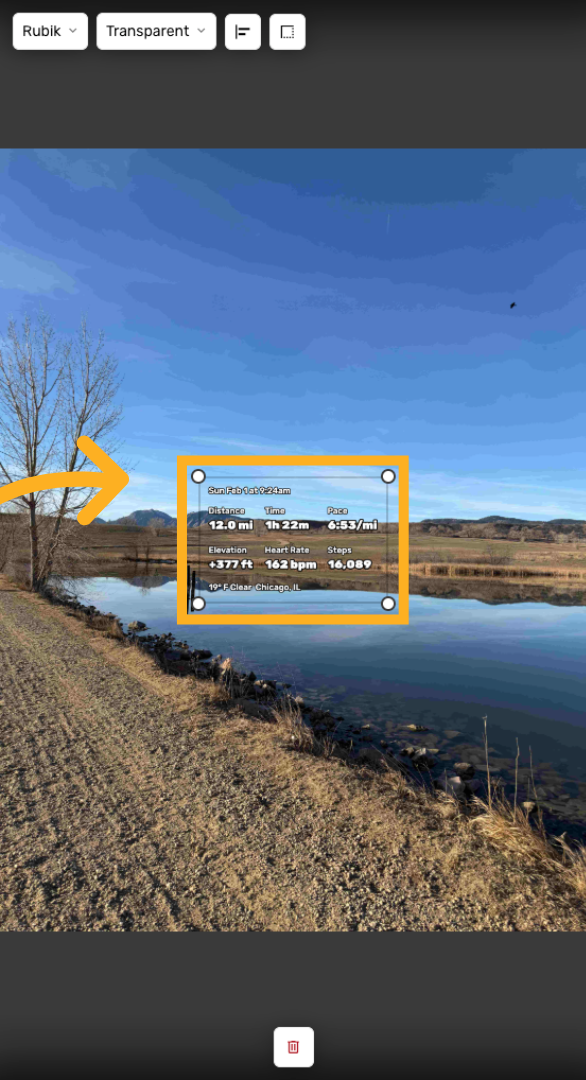
Move & resize overlays
Touch to move and resize the overlays just how you like
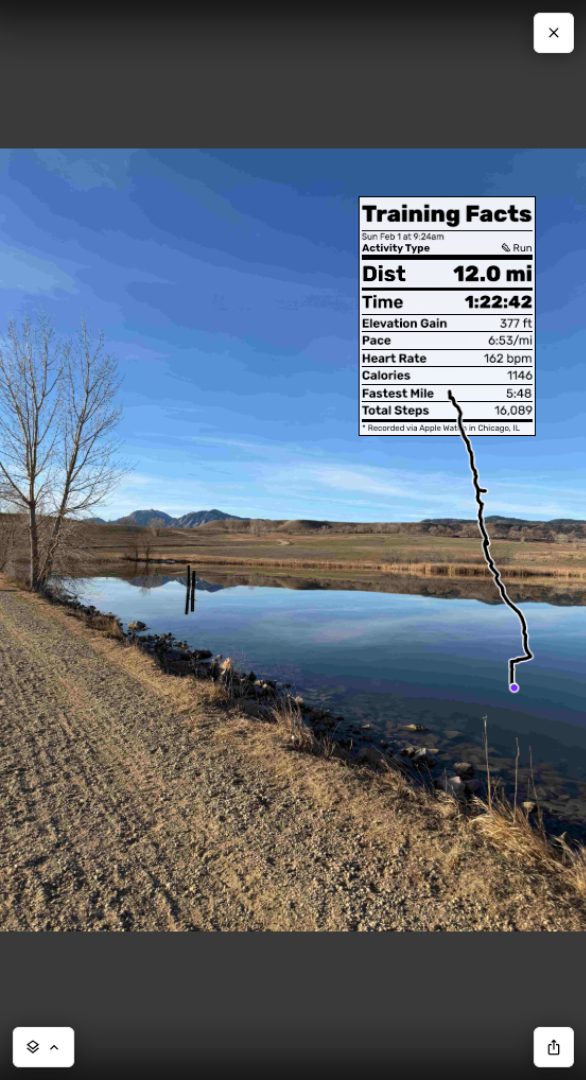
Toggle Overlays Display
OR - with no background image, choose from overlays to copy to your clipboard
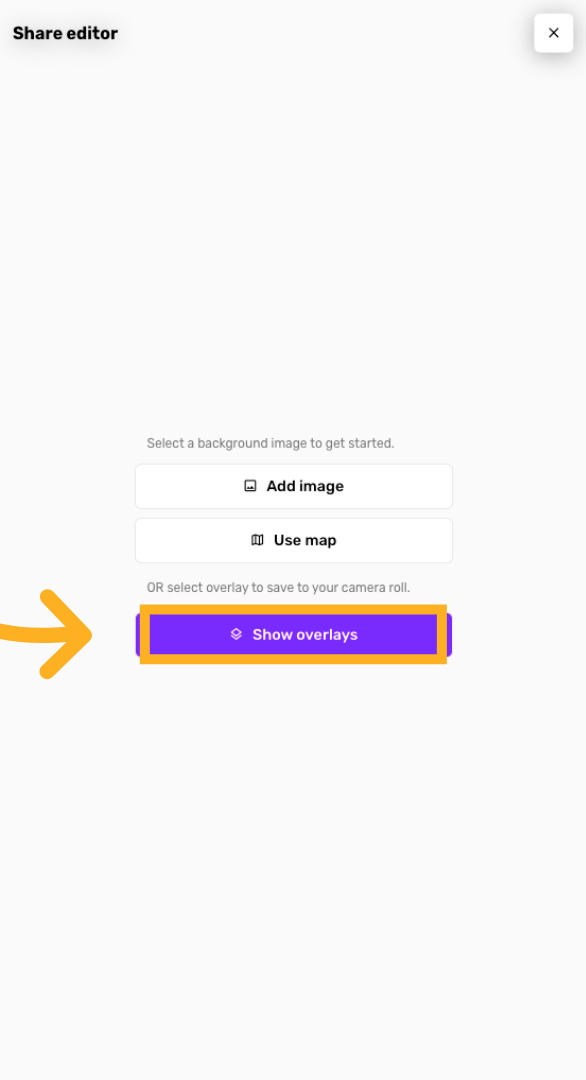
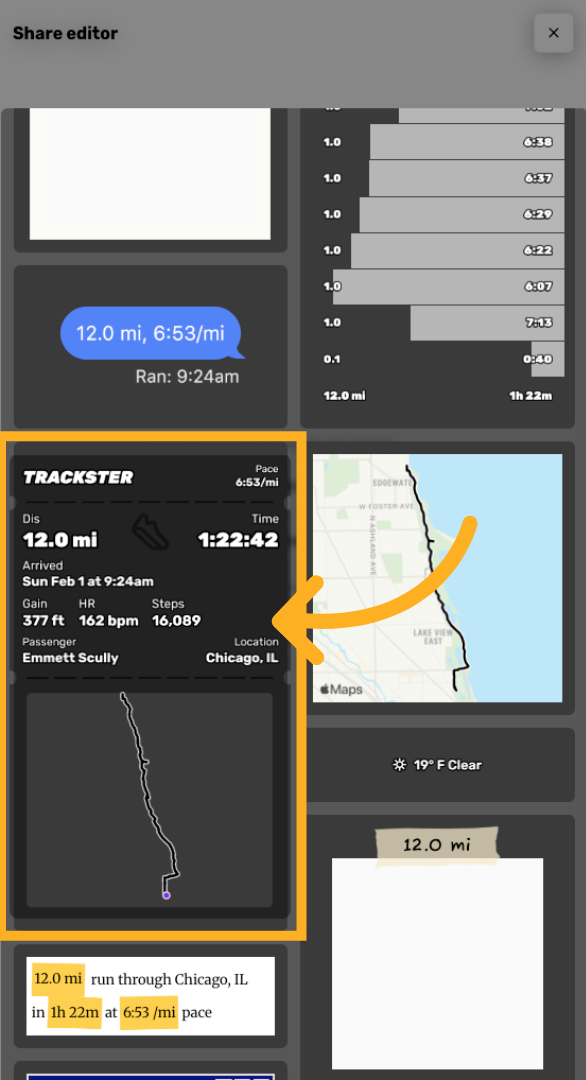
Select an overlay to copy
Just click on an overlay to save it and copy it to your device
Paste the overlay into Instagram, other apps
Paste the overlay you copied from the share editor into Instagram or other apps.
The overlay will also be saved as an image to your device.
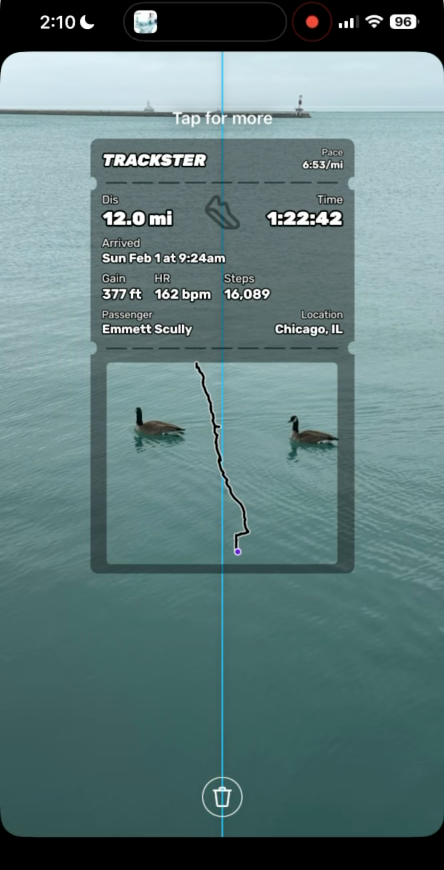
You have successfully shared a training post to social media using Trackster. This process included customizing the post with images, maps, overlays!